
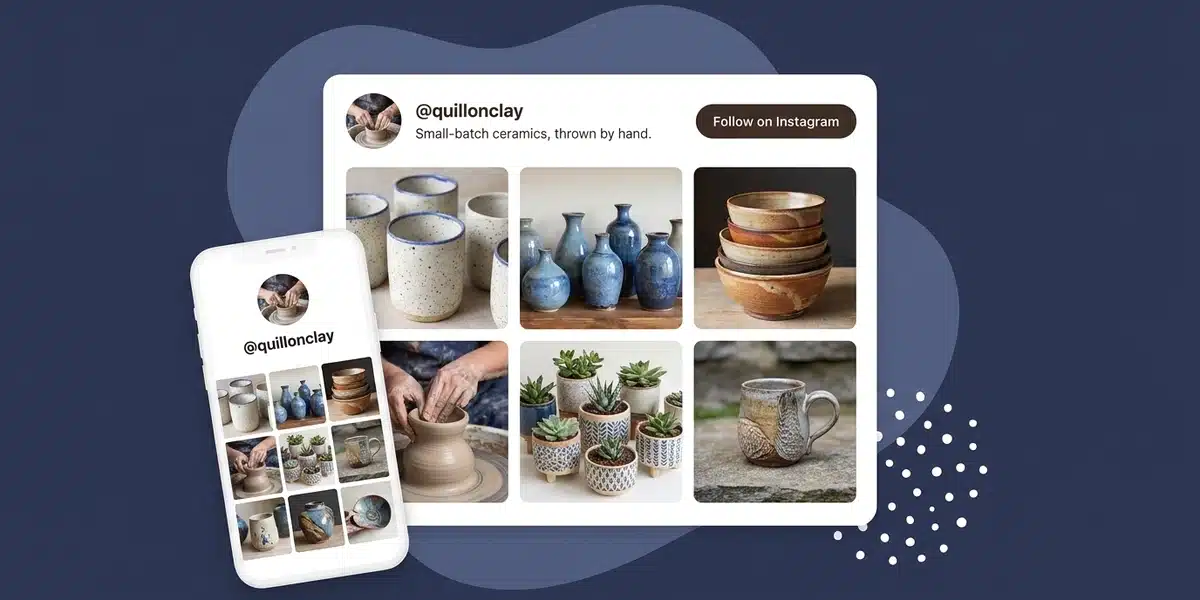
Putting your Instagram profile on your WordPress site lets visitors see your face and browse your latest work without leaving the page. You have two free ways to do it: Instagram’s built-in profile card, which needs no plugin, or a profile-style feed built inside WordPress with a free plugin that also includes your bio and a Follow button. We tested both on a WordPress 7.0 site this month to show you what each one actually puts on the page, what to do when Instagram’s Embed option doesn’t show up, and how to pick the right fit.
Quick answer: For any public account, paste a profile blockquote and Instagram’s embed.js script into a WordPress Custom HTML block to show a six-post card. If you have a Business or Creator account and want your bio and a Follow button, use the free Spotlight plugin.
Instagram’s own profile embed: what it shows
Instagram has a built-in profile embed that displays a compact card on your site. When we embedded our own @spotlight_wp account on a WordPress 7.0 test site, the card showed our profile photo, username, display name, follower count, post count, the Instagram logo, and a 3 by 2 grid of six posts.
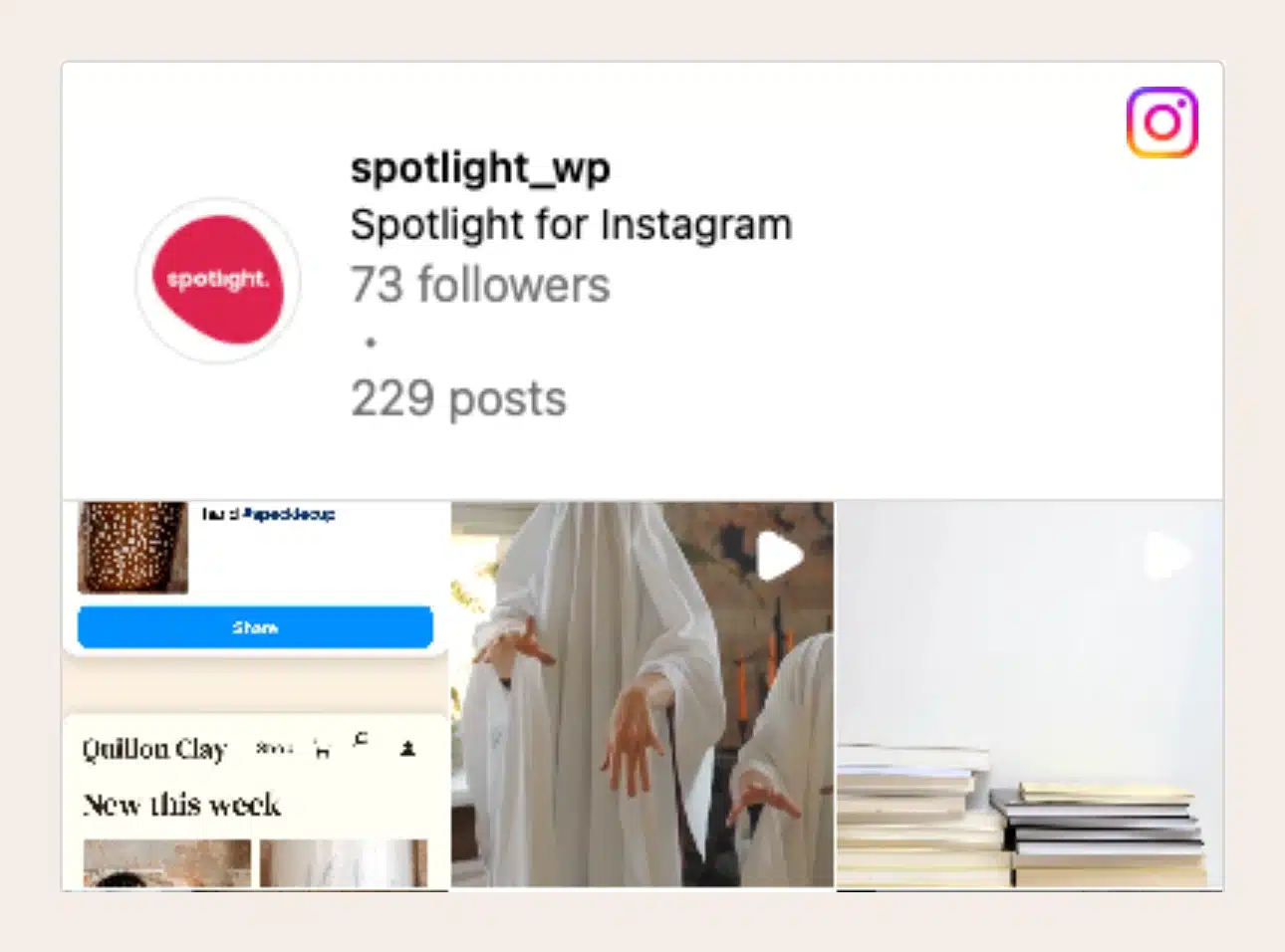
The card looks the same on desktop and mobile: those same six posts in two rows of three. The wrapper is capped at 540 pixels wide, and Instagram sets the height automatically. Everything sits inside an iframe served from instagram.com, loaded by Instagram’s embed.js script.
Because it pulls directly from Instagram in the visitor’s browser, it works for any public Instagram account (Personal, Creator, or Business) as long as the owner hasn’t turned embeds off. You don’t need to install a WordPress plugin or log into an account to make it appear.
How to add Instagram’s profile embed to WordPress
Instagram’s Help Center says you can grab a profile embed code straight from your browser, though you can’t copy embed codes from the Instagram mobile app. Here is how that route is supposed to work, followed by what we actually had to do when the menu option didn’t show up in our tests.
- Check the profile menu on Instagram’s website. Open
instagram.comin a computer or mobile browser and go to the public profile you want to embed. According to Instagram’s help documentation, you click Options (the three dots in the top right), click Embed, and then click Copy Embed Code. - If Embed isn’t in the menu, use the markup below. Copy the snippet below, which we built from the profile URL in the same
blockquoteandembed.jsformat Instagram uses for its embeds. (The Embed option didn’t appear in a logged-in desktop browser, a logged-out desktop browser, or a logged-out mobile browser.)
<blockquote class="instagram-media" data-instgrm-permalink="https://www.instagram.com/YOURUSERNAME/?utm_source=ig_embed&utm_campaign=loading" data-instgrm-version="14" style="background:#FFF; border:0; border-radius:3px; box-shadow:0 0 1px 0 rgba(0,0,0,0.5),0 1px 10px 0 rgba(0,0,0,0.15); margin:1px; max-width:540px; min-width:326px; padding:0; width:99.375%;"><a href="https://www.instagram.com/YOURUSERNAME/?utm_source=ig_embed&utm_campaign=loading">View this profile on Instagram</a></blockquote>
<script async src="//www.instagram.com/embed.js"></script>- Replace the placeholder username. Swap both instances of
YOURUSERNAMEin that snippet with the exact Instagram handle you want to display (without the@symbol). - Paste the markup into a WordPress Custom HTML block. Open your page or post in the WordPress editor, add a Custom HTML block where you want the profile card to sit, and paste the snippet in.
- Preview or publish the page. In the editor, a Custom HTML block just shows the raw code. Preview or publish the page on the front end, and Instagram’s script will turn the markup into the live profile card.
Why pasting your profile URL on its own line doesn’t work
If you are used to embedding YouTube videos by pasting a link on its own line in the block editor, you might try pasting https://www.instagram.com/ directly into WordPress. That leaves a plain link instead of a profile card.
WordPress core removed its built-in Instagram oEmbed provider in 2020. Even when we activated Meta’s free Meta Embeds plugin on our test site, Meta’s tokenless oEmbed endpoint returned “Invalid URL” for every profile URL we tried across three profiles from two locations. The same endpoint returned a working embed for a single post URL; if you just want to embed one photo or Reel, see our guide on how to embed an Instagram post on WordPress.
Why an Instagram profile can’t be embedded
Sometimes the markup won’t load a profile card at all. Based on Instagram’s rules, two settings prevent a profile from being embedded:
- The account is private. Private accounts and content from private accounts cannot be embedded anywhere outside Instagram.
- Embeds are turned off. Public account owners can disable the Embeds setting in their Instagram account settings without making the whole account private. (Switching a public account to private also turns embeds off, though Instagram notes that removing existing embeds from third-party websites may take time.)
Where the built-in embed falls short
Instagram’s card does two things well: it works with any public account (including Personal accounts), and it shows your follower and post counts for free. If you want a small badge in a contact page or blog post and don’t care how it looks, it gets the job done.
Once you put it on a portfolio or homepage, though, the limits are hard to miss:
- No Follow button. The word “Follow” doesn’t appear anywhere in the card, and your bio isn’t shown either.
- Fixed at six posts. You get a 3 by 2 grid on both desktop and phone screens. You cannot show nine or twelve posts, change the number of columns on mobile, or add a “Load more” button.
- Locked inside a 540px white frame. Because the card renders inside an iframe from
instagram.com, it ignores your theme’s fonts, background colors, and spacing. Aside from tweaking the outer border, width, or shadow in the wrapper’s inline style, you have no control over the presentation. - Loads from Instagram’s servers in the visitor’s browser. Every page view runs Instagram’s
embed.jsscript and pulls an iframe frominstagram.com.
Want your bio and a Follow button?
Build a profile feed that matches your WordPress theme and includes a customizable Follow button with the free Spotlight plugin.

How to embed your Instagram profile on WordPress with the free Spotlight plugin
If you want your profile to look like part of your website rather than a boxed widget from another domain, you can build a profile-style feed with Spotlight’s free WordPress plugin (rated 4.7 stars across 170+ reviews on WordPress.org). Instead of an iframe, the feed lives in your page HTML, picks up your theme’s fonts, and gives you a profile header with your photo, bio, and a customizable Follow button.

Before you start, check your Instagram account type. Because Instagram discontinued its Basic Display API, third-party apps can no longer connect to Personal accounts. Spotlight requires a Business or Creator account. If you currently use a Personal account, switching to a Creator account in the Instagram app is free.
- Install and activate Spotlight. In your WordPress dashboard, go to Plugins > Add Plugin, search for Spotlight Social Photo Feed, and click Install Now and Activate.
- Create a new feed and pick a layout. Open Instagram Feeds in the sidebar and click Create a new feed. Choose one of the free templates in the picker (such as Classic, Tall Grid, Squircle grid, Gallery, Solo, Row, Wave, or Custom) and click Customize my Instagram feed.
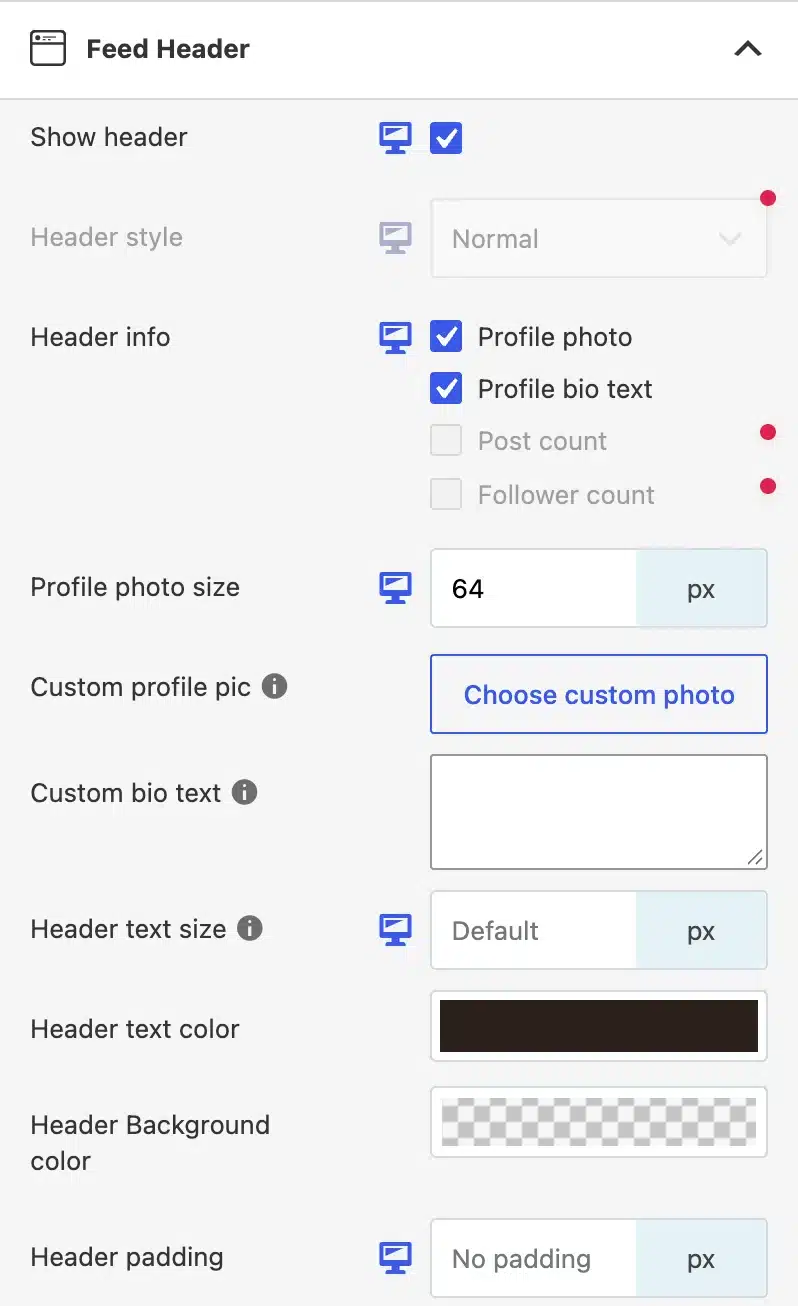
- Connect your Business or Creator account. In the Connect step, choose Basic (Connect via Instagram) or Advanced (Connect via Facebook) (the Advanced option requires a Facebook Page), and approve the connection.
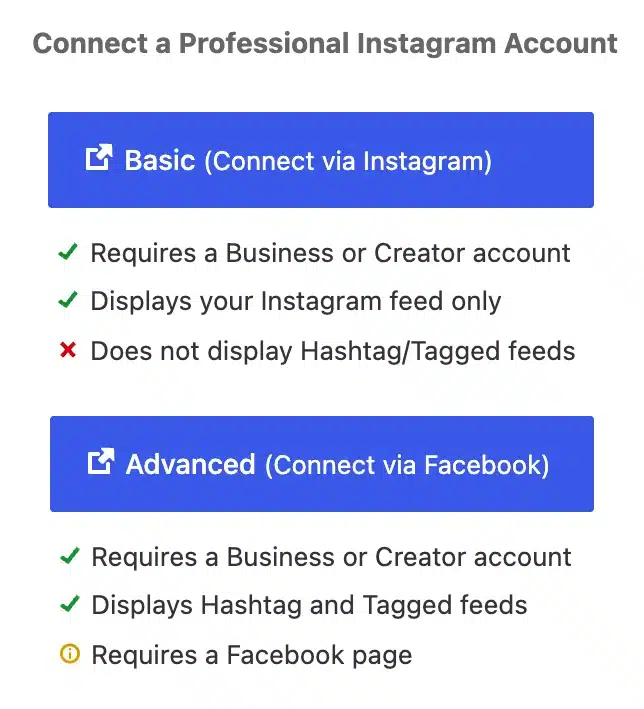
- Turn on the profile header. In the Design tab, open Feed Header and make sure Show header, Profile photo, and Profile bio text are enabled; you can also set the photo size, text size, colors, padding, or even a custom profile pic and bio right from the free editor.
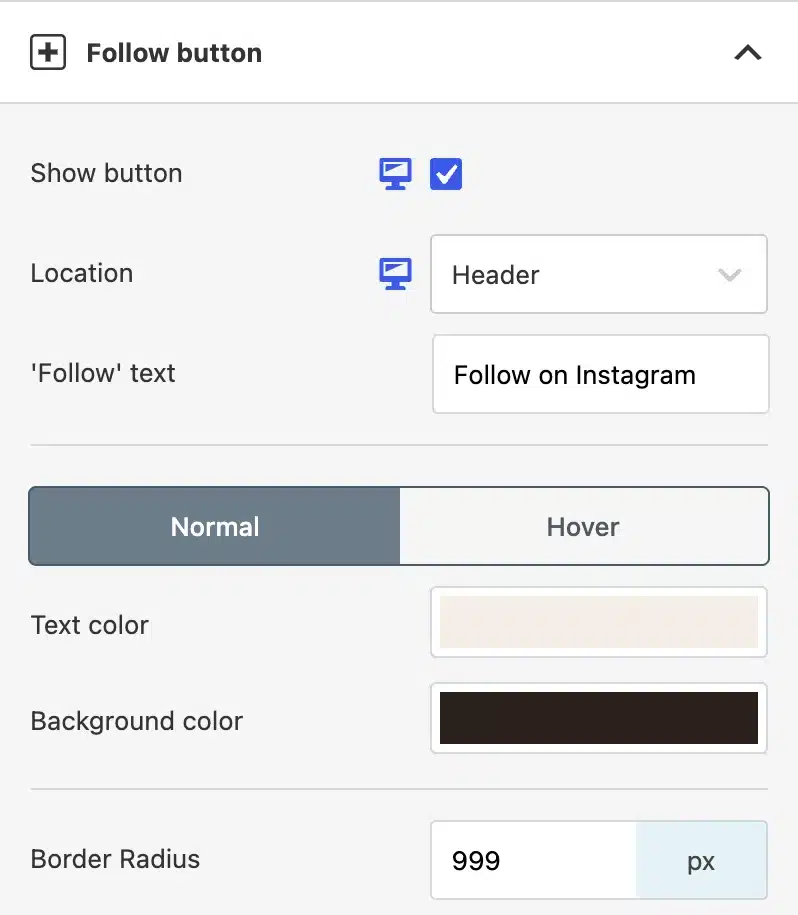
- Set up your Follow button. Still in the Design tab, open the Follow button settings, check Show button, and place it in the header, at the bottom of the feed, or both. You can rewrite the button text (for instance, “Follow on Instagram” or “Follow the studio”) and set the text color, background color, hover colors, and border radius to match your palette.
- Save the feed and add it to your page. Save your feed, then open the Embed tab in the editor to copy the shortcode, or open any page in the WordPress block editor and insert the Spotlight Instagram Feed block (you can also place it in a sidebar or footer with the Spotlight widget).
What’s free and what needs a paid plan
We tested Spotlight 1.9.0 with all premium features switched off to verify exactly where the boundary sits between the free plugin and the paid plans.
| Feature | Spotlight Free | Paid plan |
|---|---|---|
| Layouts | Classic, Tall Grid, Squircle grid, Gallery, Solo, Row, Wave, Custom | Highlight, Masonry, Slider, and Thumbnails |
| Posts and columns per device | Customizable for desktop, tablet, and phone | Customizable for desktop, tablet, and phone |
| Feed header: photo and bio | Included (plus custom photo/bio, colors, text size, padding) | Included, plus extra header styles |
| Feed header: follower & post counts | Not included | Included |
| Instagram Stories in header | Not included | Included |
| Follow & Load more buttons | Included (custom text, location, colors, hover, border radius) | Included |
| Popup lightbox | Included for photos | Plays videos and Reels in lightbox (Essentials plan) |
| Hashtag, tagged & shoppable feeds | Not included | Included (PRO plan) |
Notice the one trade-off in the header: Spotlight’s free version displays your profile photo, username, and bio text, while follower and post counts require a paid plan. Instagram’s built-in card shows follower and post counts for free, but leaves out your bio and a Follow button.
Instagram’s embed vs Spotlight: side by side
Here is how Instagram’s built-in profile card compares to a profile-style feed built with Spotlight Free on WordPress.
| Feature | Instagram’s built-in profile embed | Spotlight Free plugin |
|---|---|---|
| Works with | Any public account (Personal, Creator, or Business) with embeds on | Business or Creator account |
| Header details | Profile photo, username, display name (no bio) | Profile photo, username, and bio text (plus optional custom photo and bio) |
| Follower and post counts | Shown in the card | Requires a paid Spotlight plan |
| Follow button | None | Included (in header, bottom of feed, or both; customizable text and colors) |
| Number of posts | Fixed at 6 posts (3×2 grid) | You choose the post count and columns per device, plus a “Load more” button |
| Layout and styling | Fixed white card up to 540px wide; only outer wrapper border/shadow can be tweaked | Columns, number of posts and image ratio per device, plus header and button colors |
| Fonts | Instagram’s iframe fonts | Picks up your WordPress theme’s fonts |
| Updates | Loaded from Instagram each time the page opens | Updates automatically when you post to Instagram; caches feeds on your site |
| Where it loads from | instagram.com iframe and embed.js in the visitor’s browser |
Part of your page HTML; thumbnails are downloaded to your own server (keeps showing cached posts if Instagram has an outage) |
| Cost | Free | Free on WordPress.org (paid plans available for extra layouts and counts) |
Which one should you use?
Stick with Instagram’s built-in profile embed if you have a Personal account you don’t want to switch to Creator or Business, if you want to embed someone else’s public profile that you don’t manage, or if showing your follower count for free matters more to you than matching your site’s design. Pasting the snippet into a Custom HTML block takes a minute and adds zero plugins to your WordPress dashboard.
Use Spotlight Free if you want your Instagram presence to look like it belongs on your website. Switching your Instagram account to Creator or Business is free, and in exchange you get your bio text, a real Follow button styled in your colors, control over how many posts and columns appear on desktop and mobile, and a feed that lives in your page HTML using your theme’s fonts.
Once you install Spotlight from WordPress.org, our step-by-step guides walk you through every setting we covered above: check which Instagram account type you have, connect your Instagram account, design your first feed, customize your header settings and Follow button, and embed the feed on your site.
FAQ
How do I find the embed link for an Instagram profile?
Instagram’s help docs say to open the profile in a computer or mobile browser (not the Instagram app), click the three-dot Options menu in the top right, and select Embed > Copy Embed Code. In our November 2026 tests, that menu item did not appear in a logged-in desktop browser or in logged-out desktop and mobile browsers. If you don’t see it either, copy the <blockquote class="instagram-media"> and embed.js markup from the steps above, replace YOURUSERNAME with your handle, and paste it into a WordPress Custom HTML block.
How do I turn on embed settings on Instagram?
First, make sure your Instagram account is set to public, since private accounts cannot be embedded. Then open your Instagram account settings and check that the Embeds setting is turned on. Account owners can toggle embeds off while staying public, which stops both posts and profile cards from loading on external websites.
Can I embed my Instagram profile on WordPress without a plugin?
Yes. Add a Custom HTML block to any WordPress page or post and paste the profile blockquote markup along with Instagram’s //www.instagram.com/embed.js script. Pasting the profile URL on its own line left a plain link in our tests, because WordPress core has no Instagram oEmbed provider and Meta’s endpoint returned “Invalid URL” for profile links.
How can I embed an Instagram feed on my website for free?
You can either use Instagram’s built-in profile card (which shows six posts in a fixed 3 by 2 grid) or install the free Spotlight plugin from WordPress.org. Spotlight Free lets you connect a Business or Creator account, choose how many posts and columns to show on desktop and mobile, and add a profile header with your photo, bio, and a Follow button.
Do I need a Business or Creator account to embed my Instagram profile?
You do not need one for Instagram’s built-in profile card, which works for any public Personal, Creator, or Business profile that allows embeds. You do need a Business or Creator account to connect Spotlight, because Instagram discontinued the Basic Display API that Personal accounts used. Switching a Personal account to a Creator account in the Instagram app is free.
Why is my Instagram profile embed only showing a link?
If your Custom HTML block only shows a “View this profile on Instagram” link, check three things: make sure you are previewing or viewing the published page on the front end rather than looking inside the editor (where a Custom HTML block shows raw code), confirm the <script async src="//www.instagram.com/embed.js"></script> line is included right after the blockquote, and verify that the Instagram account is public with Embeds enabled.