The Instagram feed embedded with Spotlight can have selected or all posts link directly to WordPress posts in your blog.
IMPORTANT: In order to link Instagram posts to blog posts, Spotlight requires a valid Spotlight Pro license.
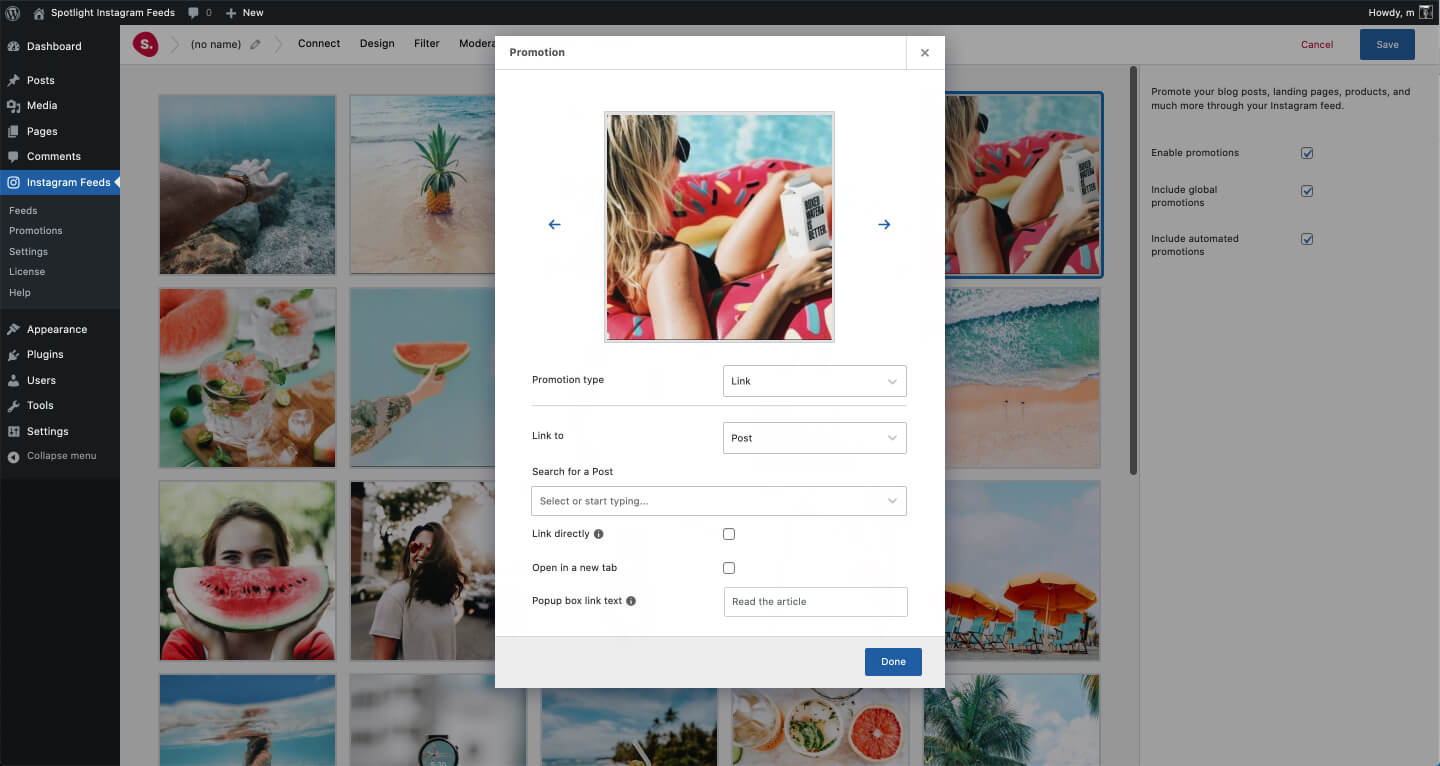
To do this, open the feed in Spotlight and head to the Promote tab, then:
-
Click on a post in the preview area and select the
Link promotion type in the popup modal. -
For the
Link to option, select
Post from the dropdown. -
Use
Search for a Post to either select one of the latest 5 posts or start typing to search by post title. -
Choose whether to have the blog post
linked directly when someone clicks on the Instagram post (the alternative is to open the popup and show a call-to-action button in the popup sidebar) and whether to have the links
Open in a new tab or not. -
Set the
Popup box link text or use the default setting. This changes the ”
View on Instagram” link that appears at the bottom of the popup lightbox sidebar when not linking to a blog post directly.
Note: When an Instagram post has a link assigned to it, a link icon will appear in the top right-hand corner of the post in the preview area, but only while on the “Promote” step. This icon won’t show up in the live feed displayed on your site.
That’s it. Once embedded on your website, all Instagram photos with blog posts assigned to them will link directly to those posts.
This can also be applied to an account’s posts across all Spotlight feeds by using Global Promotions, or it can be automated using the Hashtag Automations.