
When adding a new feed or editing an existing one, go to the Moderate step to hand-pick the posts to hide in that feed.
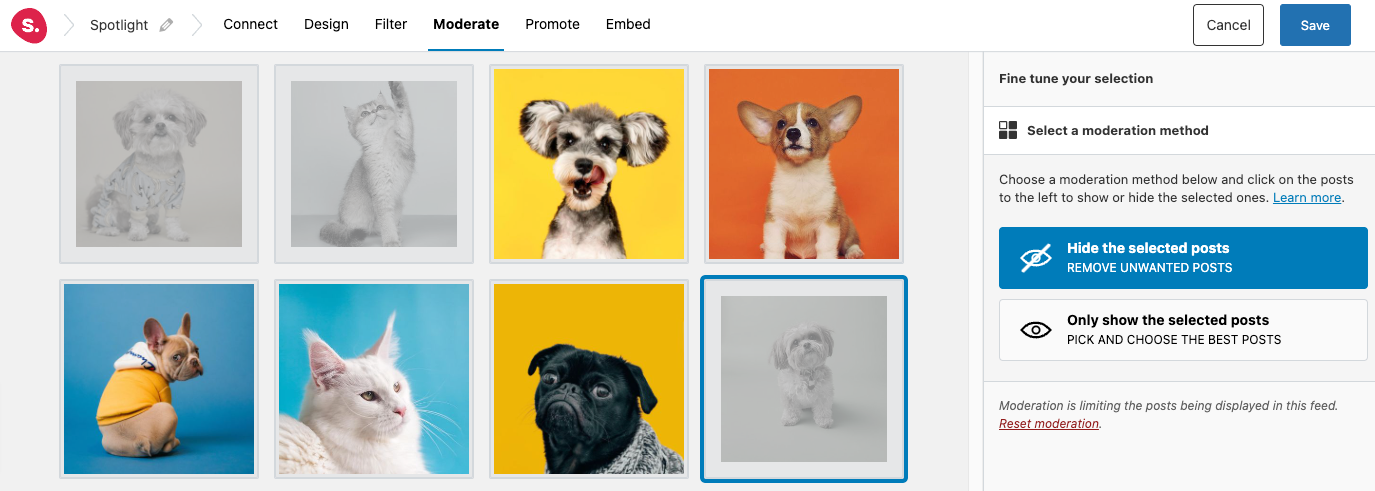
Here’s how it works:
-
When creating or editing a feed, go to the
Moderate step. - In the sidebar, you will see the options to show or hide specific posts – click on Hide the selected posts.
- In the preview area on the left, click on the posts that you want to hide from this feed.
- When you’re ready with your selection, click Save on the top right.
That’s it. You can now go on to embed your feed anywhere on your site.
Note: In the preview area, posts that are hidden are greyed out and shrink in size. Those posts to be shown are kept as is. When moving to any other step in the feed customizer, such as Design or Embed, the Live Preview will display the moderated feed, exactly as your site visitors will see when the feed is added to your site.