Every new Instagram feed in Spotlight starts with a layout. After you pick one, Spotlight takes you to the next step you need, depending on whether you’ve already connected an Instagram account.
Creating your first feed
When you visit Instagram Feeds in your Dashboard for the first time, or when no Instagram account is connected yet, Spotlight guides you through three short steps.
Step 1: Pick a layout
Choose the layout you’d like to start with. Tall Grid is selected by default, but you can pick any other layout, or select Custom to start from a blank design. You can change the layout at any time later, so there’s no need to get it perfect now.
The free version includes several layouts to choose from. Spotlight’s premium plans add more unique layouts, such as Polaroid Sticker and Thumbnail Gallery. Click Preview PRO layouts to see them in action.

When you’re ready, click Connect my Instagram account.
Step 2: Connect your Instagram account
Connect the Instagram account whose posts you’d like to show. A popup will appear to complete the secure connection.
On the free version, click Connect my Instagram account.

On a premium plan, choose Connect via Instagram (Basic) or Connect via Facebook (Advanced). The Advanced connection is required for hashtag and tagged feeds.

Learn more about connecting your Instagram account.
Not ready to connect yet? Click Skip for now to go straight to the feed editor and preview your layout with sample posts. You can connect your account from the editor later.
Step 3: Customize your feed
Once your account is connected, Spotlight confirms it and starts bringing your latest posts into your chosen layout. Click Customize my Instagram feed to open the feed editor with your account and layout already set up.

Creating another feed
If you’ve already connected an Instagram account, go to Instagram Feeds > Feeds and click Create a new feed. Pick a layout, then click Customize my Instagram feed. You’ll go straight to the feed editor, without the connection steps.
In the editor, select the account (or accounts) to show posts from under Show posts from these accounts.
Tip: Want to reuse a feed design from another site? Click Import a feed at the bottom of the layout step and paste the export code. Learn more about importing and exporting feeds.
Customize and embed your feed
In the feed editor, you can customize the design to your liking. If you’ve picked one of the layouts, you can still customize it just the same. You can also change the template at any time from the top right of the preview area.
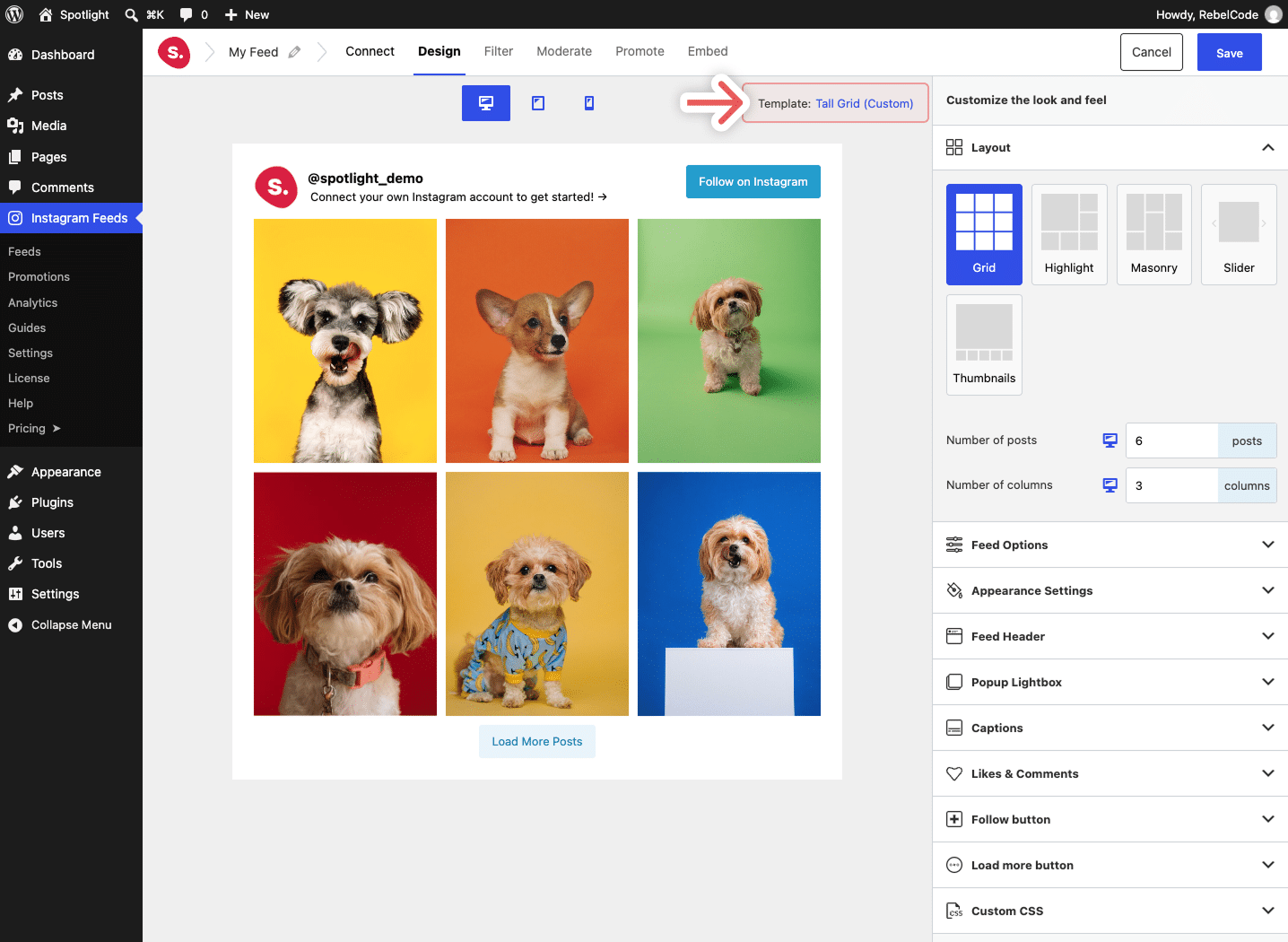
Once you’re happy with your design, proceed to the Embed step. Save the feed, name it, then use the block, shortcode, or widget provided to embed the feed anywhere on your site.

That’s it! Once your Instagram feed is embedded on your website, just sit back and let your Instagram content do its thing.