
Your Instagram feed was humming along on your WordPress site. Then, one day, nothing. A blank space where the grid used to be, or the same four posts from 2024, or a cryptic error in the admin. If you’re here, you already know the feeling.
The good news: nine times out of ten, a broken Instagram feed on WordPress traces back to one of seven causes, and most of them are fifteen-minute fixes. The bad news: a lot of the advice out there is stale, written before Meta retired its Basic Display API on December 4, 2024. That single change broke thousands of WordPress Instagram feeds overnight, and many site owners are still catching up to what it meant.
Let’s run through what’s actually going wrong and how to fix it, starting with the most likely cause and working down to the weird edge cases.
The quick version (TL;DR)
• The #1 cause in 2026 is the Dec 4, 2024 Instagram Basic Display API shutdown. If your feed was pulling from a personal Instagram account, it stopped working that day and the only fix is switching to a Business or Creator account.
• The #2 cause is an expired access token. Business and Creator accounts can’t auto-refresh, so you reconnect manually inside your plugin every few months.
• After that, in order of likelihood: an outdated plugin, a broken shortcode or embed, a caching issue, a grey-thumbnail/URL signature problem, or a plugin-theme-host conflict.
• If your current plugin hasn’t been updated in over a year, the fix is to switch plugins. A maintained plugin like Spotlight handles the Graph API, token refreshes, and caching for you.
Why Your Instagram Feed Stopped Working (Quick Diagnosis)
Before you touch a single setting, match your symptom to the most likely cause. This saves you from reinstalling plugins or clearing caches when the real problem is somewhere else entirely.
| What you’re seeing | Most likely cause | Go to |
|---|---|---|
| Feed was working, broke in late 2024 or early 2025 | Instagram Basic Display API shutdown | Fix 1 |
| Feed shows old posts and never updates | Expired access token or stale cache | Fix 2, Fix 5 |
| Feed is completely blank where it used to load | Invalid token or outdated plugin | Fix 2, Fix 3 |
| You see grey thumbnails or “image not available” | URL signature expired or CDN issue | Fix 6 |
| Shortcode prints on the page, but no feed appears | Wrong feed ID or embed method | Fix 4 |
| Feed loads on your computer, not on mobile or for visitors | Caching layer or JavaScript conflict | Fix 5, Fix 7 |
| Plugin says “Error #10” or “Requires user session” | Access token expired or revoked | Fix 2 |
| Smash Balloon says “token invalid” or “reconnect needed” | Same as above, regardless of plugin | Fix 2 |
Once you know which row describes your situation, jump to that fix. Or just read straight through, it’s short.
Fix 1: Switch Your Instagram Account to Business or Creator
If your Instagram feed broke in December 2024 or sometime after, this is almost certainly why.
Meta retired the Instagram Basic Display API on December 4, 2024. That API was what every plugin used to pull posts from personal Instagram accounts. Meta announced the shutdown on September 4, 2024, gave developers 90 days to migrate, and on December 4, every Basic Display request started returning errors. You can read the original Meta developer announcement here.
The only Instagram API still running is the Graph API, and the Graph API requires a Professional account. That means Business or Creator. Personal accounts no longer work for embedded feeds, on any plugin, on any platform. Not Spotlight, not Smash Balloon, not Elfsight, not your custom integration.
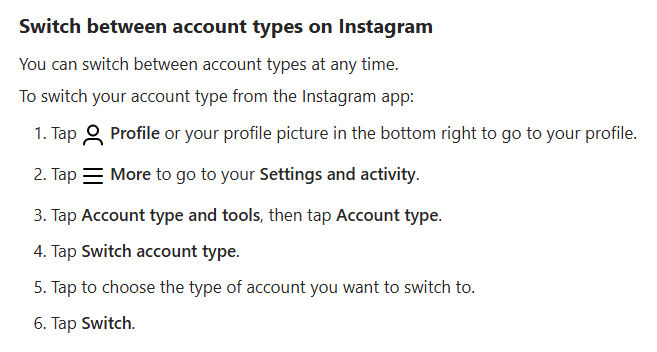
Here’s how to switch, it’s free and takes under a minute:
- Open the Instagram app on your phone
- Go to your profile, tap the three-line menu, then Settings
- Tap Account, then “Switch to Professional Account”
- Pick Business or Creator (both work the same way for WordPress feeds)
- Go back to your plugin’s settings on WordPress and reconnect the account
Your followers, posts, username, bio, all of it stays exactly the same. Switching is reversible, and nothing on your public profile changes unless you want it to.
If you use Spotlight, reconnecting takes two clicks from the Accounts tab. We wrote up the full context of the Instagram API change in 2026 over here if you want the deep dive on what Meta did and why.
Fix 2: Refresh Your Expired Access Token
Every Instagram plugin authenticates against the API using an access token. Think of it like a temporary password your plugin uses on your behalf. Tokens expire, and when they do, your feed stops updating.
Here’s the part most people don’t know: Business and Creator tokens cannot be refreshed automatically. This isn’t a plugin limitation. It’s how the Instagram Graph API works. Every few months, you need to manually reconnect your account. There’s no paid tier, on any plugin, that unlocks auto-refresh for Business tokens, because Meta doesn’t allow it.
The symptoms of an expired token are pretty consistent:
- Feed shows old posts but never adds new ones
- Plugin admin shows a “reconnect” notice or warning
- Error messages like “Error #10 [IGApiException]: Requires user session” or “Error #190”
- Feed was updating fine, then went quiet about 60 days after your last reconnect
The fix is the same across every plugin: reconnect the account. In Spotlight, go to Settings → Accounts → Actions → Reconnect. Smash Balloon, WPZOOM, Elfsight all have similar flows. If you maintain a client’s site, this is a good thing to put on a calendar reminder every 60 days.

If you run multiple sites for clients and the reconnect flow is a pain, Spotlight has a free Instagram access token generator that skips the OAuth handshake for agency workflows. It’s a utility tool, not a pitch.
Watch out for this: Disabling “Future Off-Facebook Activity” in your Facebook account settings blocks connected apps from authenticating and triggers Error #190. If you’re seeing that error specifically, check your Facebook account privacy settings first.
Fix 3: Update Your Instagram Feed Plugin
Plugins that haven’t been updated since before the Basic Display shutdown are almost certainly broken. Some silently, some loudly. When Meta changes the API, every plugin needs a release to adapt, and plugins that aren’t being maintained just… don’t.
Here’s how to check:
- Go to
wordpress.org/plugins/and search for the plugin you’re using - Look at the “Last updated” date on the right sidebar
- If it hasn’t been updated in the last 12 months, that’s almost certainly your problem
An unmaintained plugin won’t get the fixes it needs when Meta changes the API next, and Meta keeps changing the API. For context, the current free version of Spotlight was last updated in March 2026 and ships API compatibility fixes within days of Meta announcements. That’s the bar. Anything less and you’re signing up for your feed to break again in a year.
If your current plugin is abandoned, the real fix is to switch. We did an honest head-to-head of the 7 best Instagram feed plugins for WordPress that covers the live options, including Smash Balloon, WPZOOM, and Elfsight alongside Spotlight.
Fix 4: Check Your Embed Code (Shortcode, Block, or oEmbed)
Sometimes the plugin is fine, the account is connected, the token is valid, and the feed still won’t appear on the page. Nine times out of ten, the embed itself is the problem.
Three common mistakes:
- Wrong shortcode or feed ID. If you copied the shortcode from an old feed that you’ve since deleted, it won’t render anything. Go into your plugin’s Feeds list, copy the fresh shortcode for the feed you want, and paste it into the page.
- Gutenberg block stuck on a cached version. Remove the block entirely, save the page, refresh the editor, then add a new block. Gutenberg sometimes holds onto a stale version of the feed ID.
- Trying to use Instagram’s native oEmbed for full feeds. Pasting a single Instagram post URL into a block still works for individual posts. Pasting a profile URL and expecting a feed does not, and hasn’t since Meta locked oEmbed down to single posts on Business accounts only.
After fixing the embed, flush your WordPress permalinks. Go to Settings → Permalinks, then click Save Changes without changing anything. This nudges WordPress into refreshing its URL structure, which fixes a surprising number of “the feed just won’t show up” problems.
One more thing worth checking: some security plugins (All In One WP Security, WP Hardening) disable the WordPress REST API by default. Instagram feed plugins need the REST API to communicate between the front and back ends of your site. If you’ve got one of those installed, look for a “disable REST API” or “disable JSON API” option and whitelist your plugin’s namespace.
Fix 5: Clear Every Layer of Caching
Caching is probably the single most confusing reason an Instagram feed looks broken. Your feed is technically working, but the page visitors see is a cached snapshot from hours or days ago. There are usually three layers to check:
Plugin cache
Every serious Instagram feed plugin has its own internal cache, because hitting the Instagram API on every page load would be slow and hit rate limits. In Spotlight, go to Settings → Tools → Clear the cache. You can also clear the cache for a single feed from the Feeds list.

WordPress caching plugin
WP Rocket, W3 Total Cache, LiteSpeed Cache, and WP Super Cache can all serve a cached HTML version of your page with the stale feed baked in. Flush the page cache, the object cache, and the minified JS/CSS cache. While you’re in there, make sure your caching plugin isn’t minifying the Instagram plugin’s scripts, that breaks feeds more often than you’d think. Spotlight has a documented fix for WP Rocket specifically.
CDN cache
If you use Cloudflare, BunnyCDN, or a similar service, the cached version they’re serving globally might still show the broken feed even after you’ve cleared everything on your own site. Clear the CDN cache from its dashboard. On Cloudflare, that’s the “Purge Everything” button.
Work through those three layers in order, and test in an incognito window between each one. Normal browsers cache aggressively, so what looks broken might just be your local cache lying to you.
Fix 6: Fix Grey Thumbnails or “Image Not Available”
This one deserves its own section because the cause is so specific. You see the feed’s layout and structure, but every image is a grey placeholder, or the plugin throws an “image not available” or “thumbnail not available” error.
Here’s what’s happening. When Instagram serves an image through the API, the URL it returns is cryptographically signed, and that signature has an expiration. If your plugin cached the signed URL too long, or if the CDN holds onto it past the expiry, the image stops loading even though the post itself is perfectly fine on Instagram.
Older plugin versions hit this constantly because they pointed directly at Instagram’s CDN. Modern versions (Spotlight included) import images locally to your WordPress media library, which sidesteps the problem entirely. But existing cached data can still show the error until you clear it out.
The fix is sequential:
- Clear the plugin cache (Settings → Tools in Spotlight)
- Open the feed for editing and wait for the import to fully complete. Don’t navigate away mid-import, that’s how this error usually starts in the first place.
- If it still shows grey thumbnails, reconnect your Instagram account
- If it still persists, check disk space on your server. The
wp-content/uploads/spotlight-instafolder needs room to write. A full disk triggers the same error.

Spotlight documents this exact error flow here and here if you want the Spotlight-specific walkthrough.
Fix 7: Resolve Plugin, Theme, or Host Conflicts
If you’ve worked through the first six fixes and the feed still won’t load, you’re in conflict territory. Something else on your site is interfering.
The standard diagnostic isn’t glamorous, but it works:
- Deactivate every plugin except your Instagram feed plugin. Check if the feed loads. Ideally do this on a staging copy of your site, not in production.
- Switch your theme to a default WordPress theme (Twenty Twenty-Four or similar). Check again.
- If the feed works with everything deactivated, reactivate plugins one at a time until it breaks again. The last plugin you reactivated is the culprit.
The most common conflict culprits: aggressive caching plugins, security plugins that block the REST API, and JavaScript optimization plugins that mangle the feed plugin’s scripts. JetPack and WP Rocket in particular have documented interactions with most Instagram feed plugins.
One conflict category that’s often overlooked: your hosting firewall. Some managed hosts (especially shared hosts with aggressive WAFs) block outbound requests to graph.facebook.com or graph.instagram.com, which are the exact endpoints the Graph API needs. If your plugin shows “connection failed” or “API unreachable” errors, ask your host’s support team to whitelist those domains. They usually can, they just don’t by default.
PHP version matters too. Spotlight and most modern Instagram plugins require PHP 7.4 or higher, and recommend PHP 8.1+. If your host is still on 7.2 or lower, that’s both a security problem and a likely cause of broken feeds.
Still Not Working? The Real Fix Might Be Switching Plugins
Here’s the thing: if you’ve worked through all seven fixes and your feed still isn’t loading, the most likely explanation is that your current plugin isn’t keeping up with Meta’s API changes. You can sink another weekend into debugging, or you can switch to something maintained and move on.
That’s not a shot at any specific plugin. Instagram feed plugins are a tough space, and some of the older ones simply haven’t adapted to the Graph API era. If yours is one of them, no amount of cache-clearing will save it.
Spotlight is a Meta-verified Instagram partner, ships updates within days of Meta’s API changes, and has a fully featured free version that handles everything most sites need. Paid plans start at $59/year for Essentials on a single site, $99/year for PRO (shoppable feeds, hashtag feeds, Link in Bio), and $199/year for Agency on up to 20 sites. All plans come with a 30-day money-back guarantee.
If you’re migrating from a broken plugin, the full setup guide walks through installing Spotlight, switching your account to Professional, and having a working feed back up in under ten minutes.

Frequently Asked Questions
Why did my Instagram feed stop working in December 2024?
Meta retired the Instagram Basic Display API on December 4, 2024. Any plugin or custom integration that was pulling posts from a personal Instagram account stopped working that day. The only fix is switching your Instagram account to Business or Creator and reconnecting through a plugin that uses the Graph API.
Why is my Smash Balloon Instagram Feed not updating?
Same reasons every other plugin has feed issues. In order of likelihood: your access token expired (reconnect the account), your account is still a personal account (switch to Professional), the plugin needs an update, or a caching layer is serving a stale copy. Smash Balloon’s reconnect flow is in its settings under Accounts.
How do I refresh my Instagram access token in WordPress?
You don’t refresh the token directly. You reconnect the account, which generates a new token behind the scenes. In Spotlight, go to Settings → Accounts → Actions → Reconnect. Every major plugin has an equivalent. Business and Creator account tokens can’t be refreshed automatically on any plugin, so plan on reconnecting every couple of months.
Does Instagram oEmbed still work?
Yes, for single Instagram posts pasted into the Gutenberg block editor. Meta still supports oEmbed for Business accounts on individual posts. It does not work for full feeds, and it doesn’t work at all for personal accounts. If you want a full Instagram feed, you need a plugin.
Why did some of my Instagram posts disappear from my feed?
A few possibilities. If the post was deleted from Instagram, most plugins don’t auto-remove it from the cache immediately, so clearing the plugin cache fixes it. If the post included content flagged for copyright, Instagram’s API sometimes returns the post metadata without the image or video URL. And if the post is from a promoted or advertising campaign on a personal account, the API doesn’t expose those at all, so switching to a Business account is the fix.
Can I still use a personal Instagram account for my WordPress feed?
No. Personal accounts have been unsupported since December 4, 2024, when Meta shut down the Basic Display API. This isn’t a plugin decision, it’s an API reality. Switching to Business or Creator is free, takes under a minute, and your profile stays the same.
How often should my Instagram feed update?
Spotlight’s default refresh interval is configurable under Settings → Configuration → Import options. Most plugins default to hourly, which is plenty for a typical feed. Setting it too aggressive (every few minutes) risks hitting Instagram’s API rate limits and doesn’t add much value, most people don’t post more than a few times a day.
Does Spotlight fix these issues automatically?
Mostly yes. Spotlight auto-handles the Graph API switch, manages caching behind the scenes, imports images locally to avoid grey thumbnails, and shows clear reconnect prompts in the admin when a token expires. The one thing no plugin can do automatically is refresh a Business account token, because Meta doesn’t allow it.
The takeaway
Instagram feeds on WordPress break for predictable reasons. The December 2024 API change is the reason most 2024-era feeds died, expired tokens are the reason most 2025-era feeds die, and outdated plugins or caching layers cover almost everything else. None of it is mysterious, and none of it takes more than a focused afternoon to diagnose.
The real question is whether you want to keep debugging the same problems every few months, or switch to a plugin that handles the API layer for you so you can go back to running your site. Either way, you’re not stuck.
Have questions about a specific error message or a feed that’s behaving weirdly in some other way? Let’s talk about it in the comments section below!