If you run a shop, sell services, or represent a brand, a Business profile is usually a good fit. If you build an audience around your art, tutorials, or other content, a Creator account tends to fit best.
Both options are Instagram professional accounts, which means they share the essentials: audience analytics, contact buttons, and access to advertising tools. Both are free to set up. Paid ads and optional paid tools cost extra.
You might do both. A wedding photographer might book client shoots while publishing editing tutorials. If that sounds like you, either setup can handle the mix. You can sell services on a Creator profile, and you don’t need to switch an existing setup that already works just to match a label.
During setup, Instagram also asks you to choose a category. That describes what you do; you still choose Creator or Business yourself.
Creator vs Business at a glance
| Feature | Creator | Business |
|---|
Where Personal accounts fit
Personal accounts are meant for everyday private or social sharing, and they’re the only profiles on Instagram that can be set to private. If you use a professional account, your profile must stay public.
Staying on a Personal account doesn’t cut off all performance data, provided your profile stays public. A public Personal profile can use “Your dashboard” to track reach, engagement, follower demographics, and a 30-day performance summary. It can also schedule posts in the app.
Private Personal accounts don’t get dashboard access. What Personal accounts can’t do—public or private—is boost posts, access professional advertising tools, or view monetization insights.
Business
Creator
Personal
Dashboards and Creator Marketplace
Both Creator and Business accounts use the Professional dashboard to run ads, review performance metrics, and see monetization insights.
Choosing Creator or Business doesn’t unlock every tool. Some features also depend on where you live and whether you meet Instagram’s requirements.
If you want to partner with brands, you don’t have to choose Creator. The Meta Creator Marketplace is open to eligible Business accounts alongside Creator accounts, so switching to Creator won’t automatically get you in.
Meta reviews factors like your age, where you’re based, your follower count, and whether you meet its rules for paid partnerships.
Music and commercial use
Instagram provides a licensed music library, but it’s intended strictly for personal, non-commercial use. To honor agreements with copyright holders, certain Business profiles and certain types of posts can’t access this catalog, and music availability varies across countries and regions.
Your account type doesn’t give you commercial music rights.
If you’re promoting a client service, a paid product, or a seasonal sale, seeing a popular track in your music sticker tray doesn’t give you the legal right to use it for that promotion—regardless of whether you’re using a Creator or Business profile.
If your profile can’t access the licensed library, you may be able to use Meta’s Sound Collection. That catalog includes over 14,000 royalty-free songs and sound effects that can be used for Reels, Stories, and commercial content such as ads.
Scheduling, external tools, and website feeds
Any public Instagram profile, including a public Personal account, can use native post scheduling. Using the Instagram mobile app, you can schedule reels, single photos, and carousel posts up to 30 days ahead, up to a limit of 25 scheduled posts per day.
Just keep in mind that native scheduling doesn’t support product tagging, collaborative posts, sponsored posts, or fundraisers.
If you already use a scheduling or booking app, check that it supports the account type you’re considering before you switch.
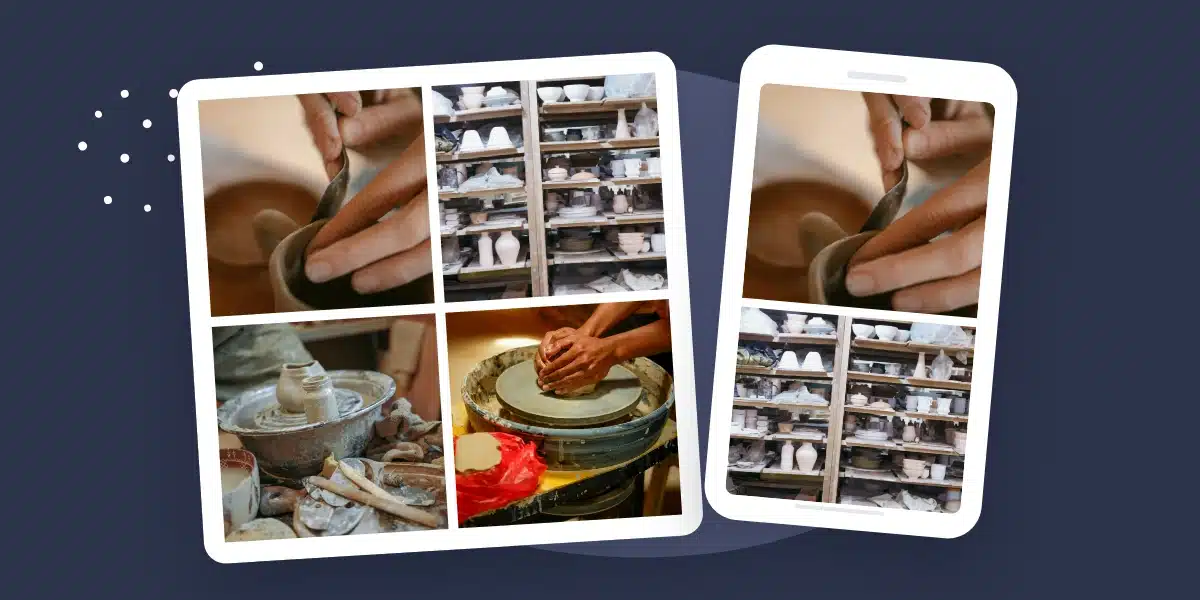
For WordPress site owners displaying an Instagram feed, Spotlight supports both Creator and Business accounts through two connection methods:
- Basic connection: You sign in through Instagram and let Spotlight display your posts. You don’t need a linked Facebook Page.
- Advanced connection: You connect through Facebook, which requires your professional Instagram profile to be linked to a Facebook Page you manage.
Neither connection method works with Personal accounts.
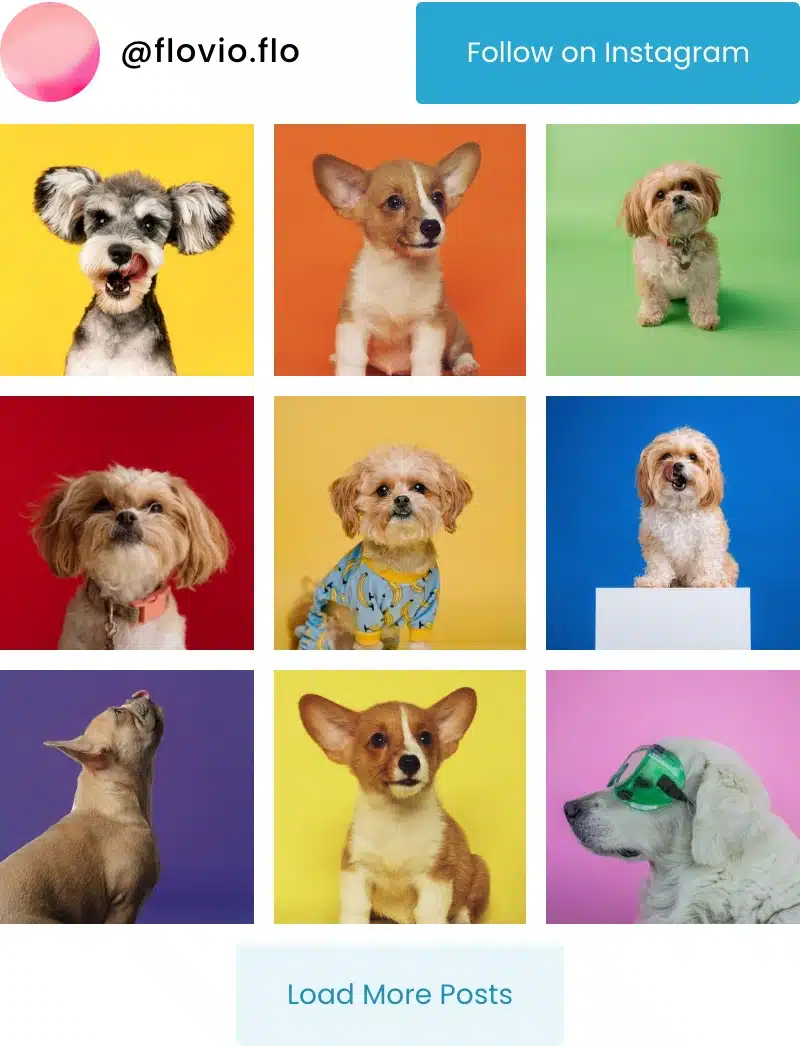
Bring your Instagram posts to WordPress
Spotlight pulls your Instagram posts from either professional account straight onto your site.
Switching accounts
If you aren’t certain what kind of profile you have right now, you can identify your account type in your profile settings.
Before you switch, here’s what will change:
- If you switch a private Personal account to a professional account, your profile becomes public immediately, and Instagram automatically accepts any pending follow requests.
- If you switch back to a Personal account, you lose access to ads and certain Meta tools (including Meta Business Suite and Meta Ads Manager), and any linked Facebook Page is disconnected. A public Personal profile keeps “Your dashboard” and basic metrics.
After you change account types, check that your connected tools still work.
How to switch on mobile
To switch from a Personal account to a professional account using Instagram’s account settings:
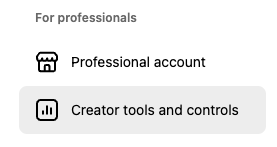
- Open your profile, tap the menu icon (More), and select Settings and activity.

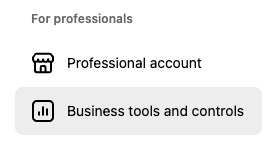
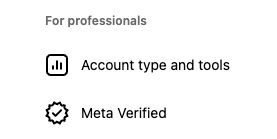
Open the menu in the top right of your profile. - Under For professionals, tap Account type and tools, then select Switch to professional account.

Choose “Switch to professional account” from Account type and tools. - Choose a category that describes your work, tap Switch to professional account, select Creator or Business, tap Next, and complete the on-screen prompts.

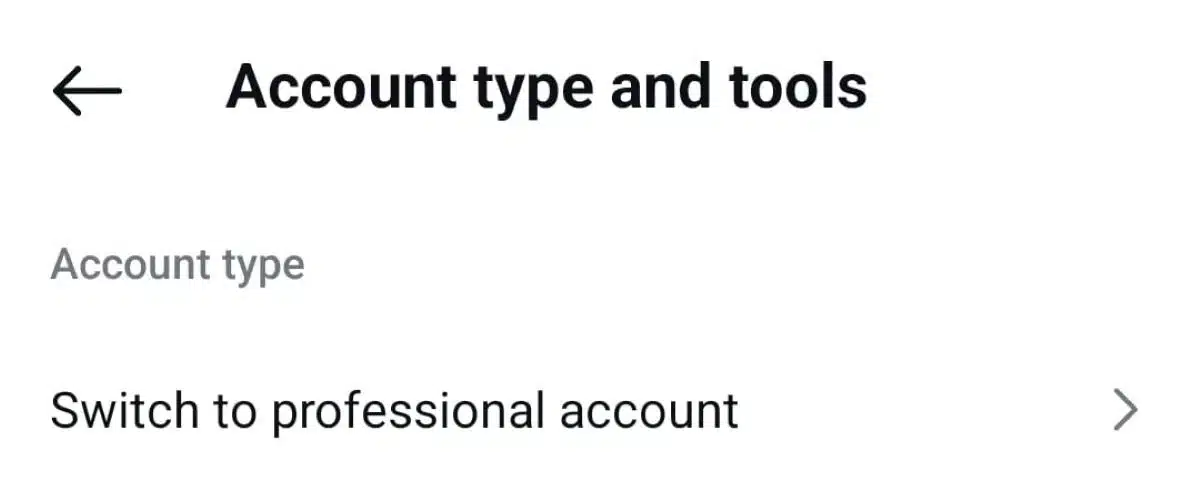
To switch between Creator and Business, or back to Personal:
- Open your profile, tap More, and open Settings and activity.
- Tap Account type and tools, select Account type, and choose Switch account type.
- Select the account type you want, then tap Switch to confirm.
Before you change your account
Take a look at the profile you’re running right now and see if the tools you rely on daily—like a scheduling app or website feed—require a particular account type.
Both account types work well when you’re balancing client bookings with personal content, so you can leave things as they are if your account already meets your needs.
If another account type would work better for you, follow our professional account setup guide to make the switch.