
Your Instagram posts are already doing the work of building trust, showing off your products, and keeping followers engaged. Adding that feed to your WordPress site puts the same content where it can actually convert visitors, without you creating anything new.
This guide walks through every method for getting your Instagram feed onto WordPress: using a plugin (the fastest route), adding feeds to your sidebar or footer, embedding with Elementor, and doing it manually without a plugin. We’ll also cover troubleshooting for when things don’t work the way they should.
Jump to:
- Add a feed using a plugin (recommended)
- Add a feed to your sidebar or footer
- Add a feed with Elementor
- Embed Instagram posts without a plugin
- Best Instagram feed plugins compared
- Advanced features
- Troubleshooting common issues
- FAQ
How to Add an Instagram Feed Using a Plugin (Recommended)
A plugin handles the Instagram API connection, feed layout, caching, and display so you don’t have to touch any code. The whole process takes about five minutes.
We’ll use Spotlight for this walkthrough. It has a free version with unlimited accounts and unlimited feeds, a live visual customizer, and it works with the block editor, shortcodes, and widgets out of the box. If you prefer a different plugin, the general process is similar. We compared the top options here.
Step 1: Install and Activate Spotlight
From your WordPress dashboard:
- Go to Plugins > Add New.
- Search for “Spotlight” in the search bar.
- Find Spotlight Social Media Feeds and click Install Now.
- Once installed, click Activate.
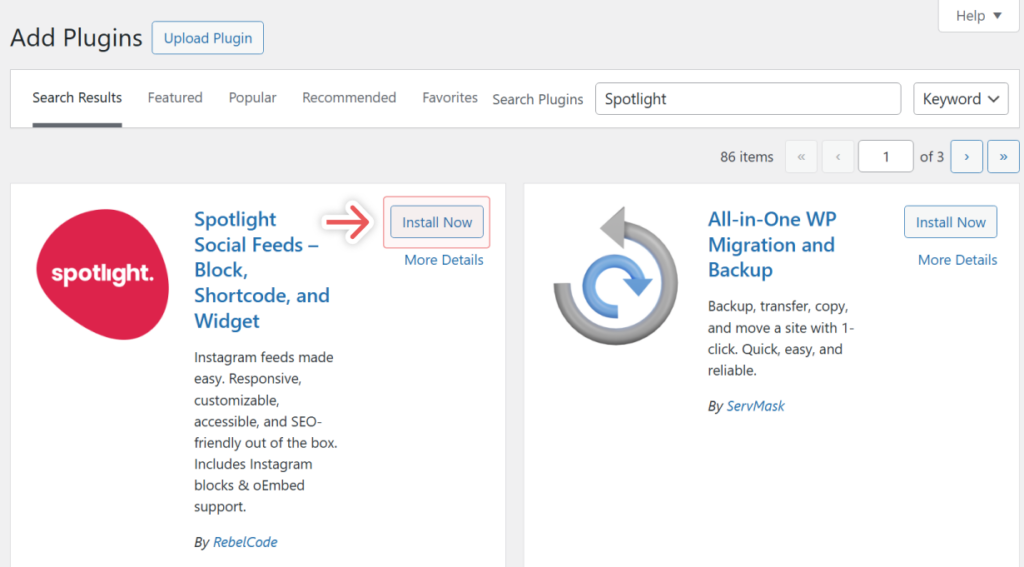
You’ll see a new Instagram Feeds menu item in your WordPress sidebar. That’s where everything happens from here.
If you’d rather install manually, you can download the plugin from WordPress.org and upload the zip file through Plugins > Add New > Upload Plugin. The Spotlight installation guide covers both methods in detail.
Step 2: Connect Your Instagram Account
After activation, Spotlight will prompt you to create your first feed. Choose your feed type (your own posts, tagged posts, hashtags, or shoppable), pick a design template, and click Connect & customize.
You’ll see two connection options:
- Basic (Connect via Instagram) connects directly through Instagram. No Facebook Page required. This works for most people who just want to display their own posts.
- Advanced (Connect via Facebook) requires a Facebook Page linked to your Instagram account. This unlocks hashtag feeds, tagged post feeds, and other advanced features in Spotlight PRO.
Pick the one that fits your needs and follow the on-screen authorization prompts. Spotlight is verified by Meta for Instagram API access, so this is a standard OAuth flow, not a workaround.
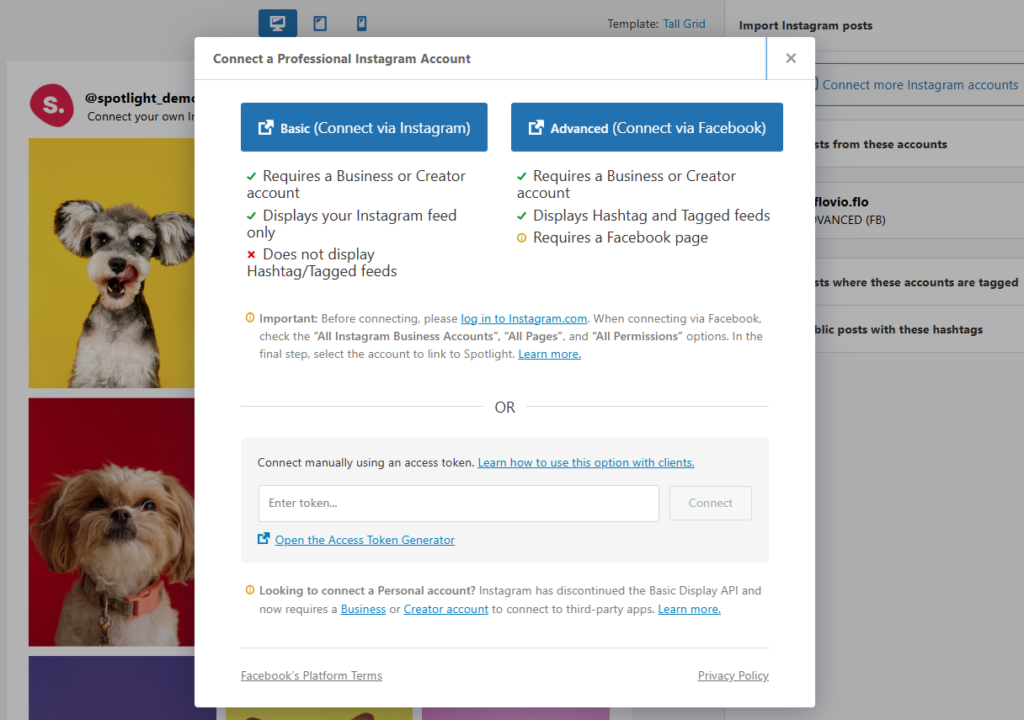
Heads up on the API change: In December 2024, Instagram discontinued its Basic Display API. If you’ve used other Instagram feed tutorials before and they mention “Personal” account connections, that method no longer exists. You now need a professional account (either Creator or Business) to connect any Instagram feed plugin to your site. Switching is free and takes about 30 seconds in your Instagram settings. Spotlight’s documentation has walkthroughs for switching to a Creator account or a Business account.
Step 3: Customize Your Feed Layout
Once connected, Spotlight pulls in your posts and drops you into the live customizer. This is where you decide how the feed looks on your site. Every change previews in real time, so you’re not guessing.
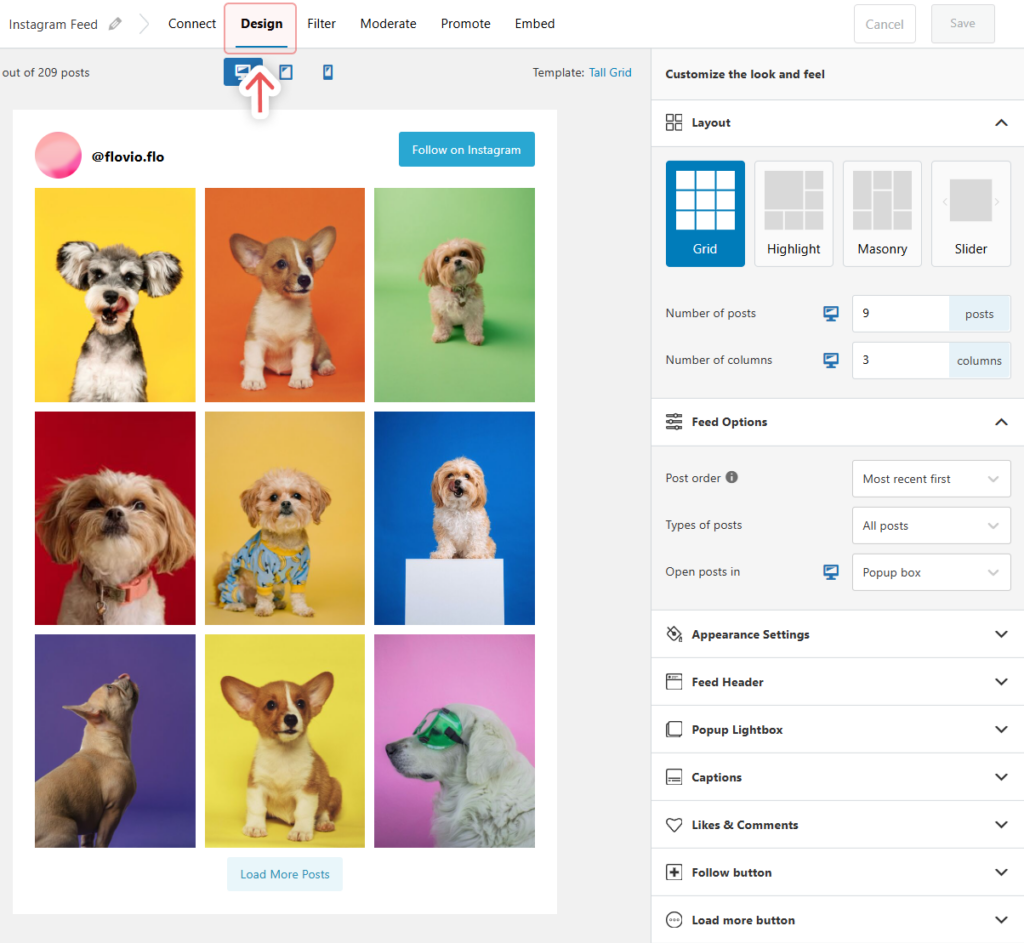
The Design tab gives you control over:
- Layout type: Grid, masonry, highlight, or slider. The free version includes grid and slider. All four are shown on the demo page.
- Post count and columns: How many posts to show and how many columns to use.
- Post order: Newest first or most popular first.
- Open behavior: What happens when a visitor clicks a post. Options: open in a lightbox, same tab, or new tab.
- Appearance: Width, height, padding, text size, background color.
- Feed header: Toggle the profile photo, bio, and follower count on or off.
- Buttons: Customize the “Follow” and “Load More” buttons, or hide them.
If you want something quick, the 12+ pre-built templates in the Essentials plan cover common layouts so you can start with a design and adjust from there. The free version gives you a solid grid template to work with.
For a deeper dive on customization, check out the Instagram gallery creation guide.
Step 4: Embed the Feed on Your Page or Post
Click the Embed tab in the feed editor. You have three ways to get the feed onto your site:
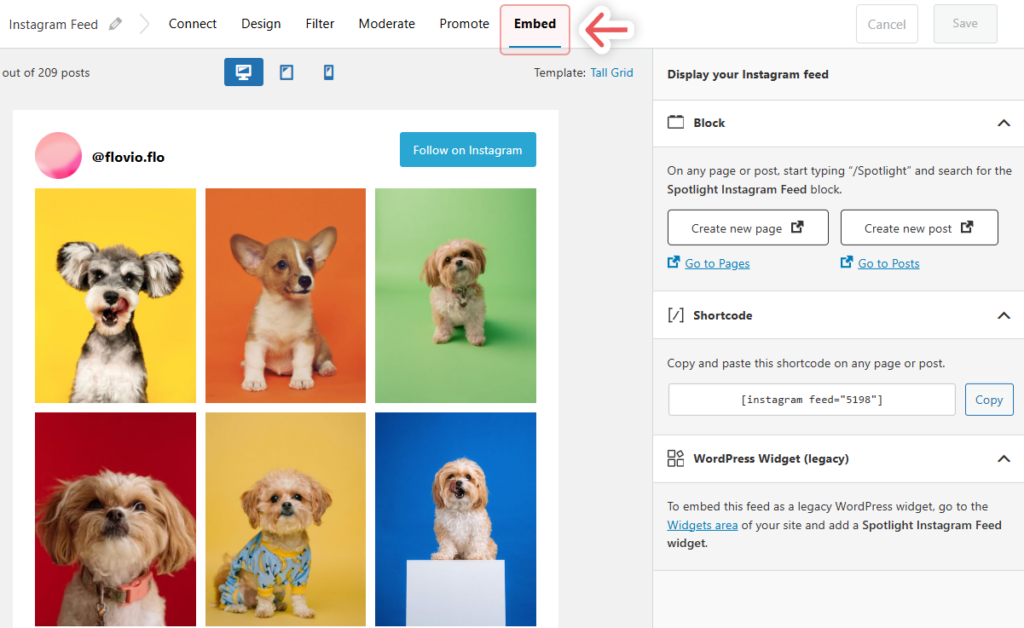
Option A: Add directly from the feed editor
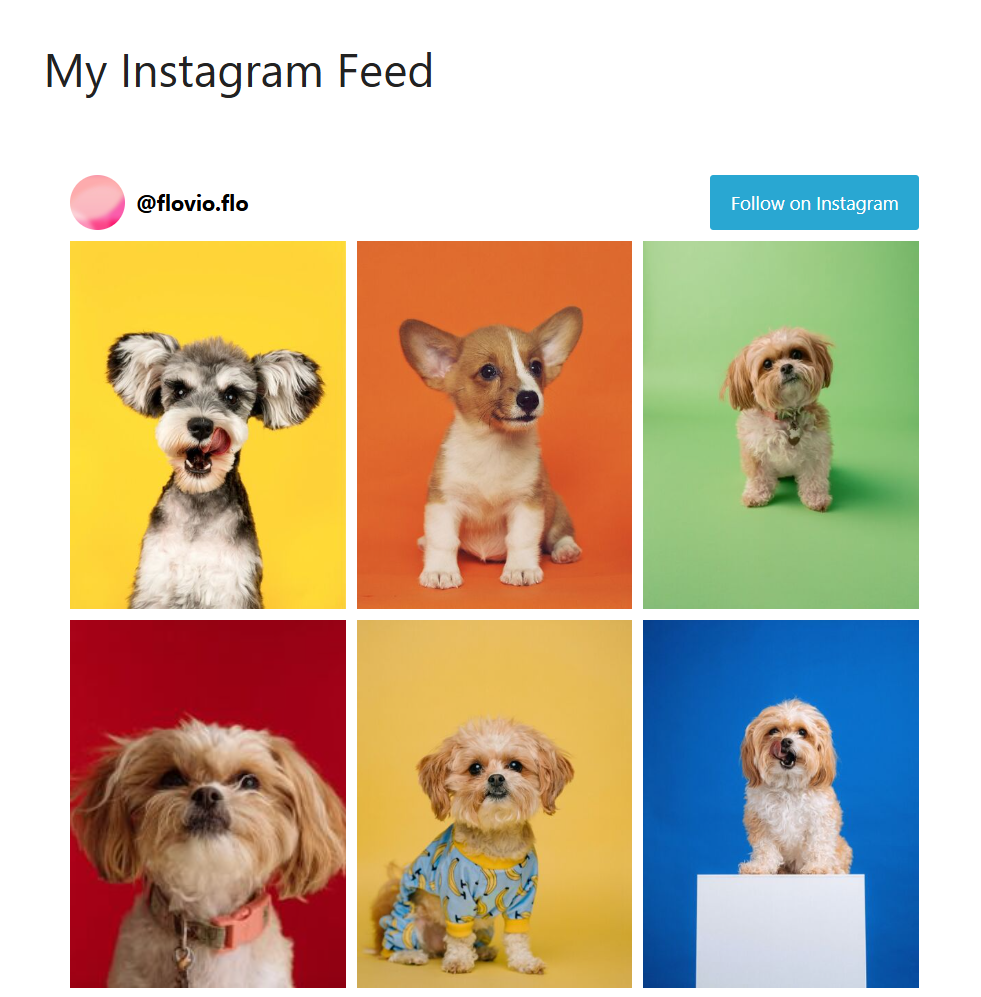
Click the Add to a page button. Spotlight will let you pick an existing page or create a new one, then insert the feed automatically.
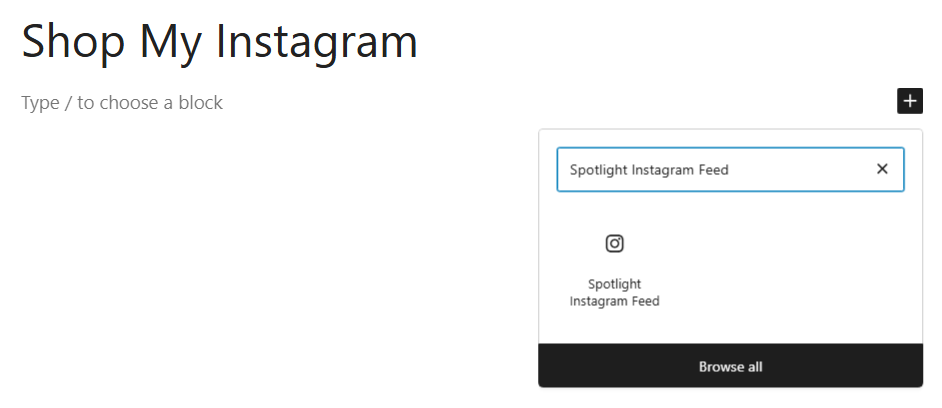
Option B: Use the WordPress block
In the block editor, click the + button and search for “Spotlight” or “Instagram”. Insert the Spotlight Instagram Feed block, then select which feed to display.
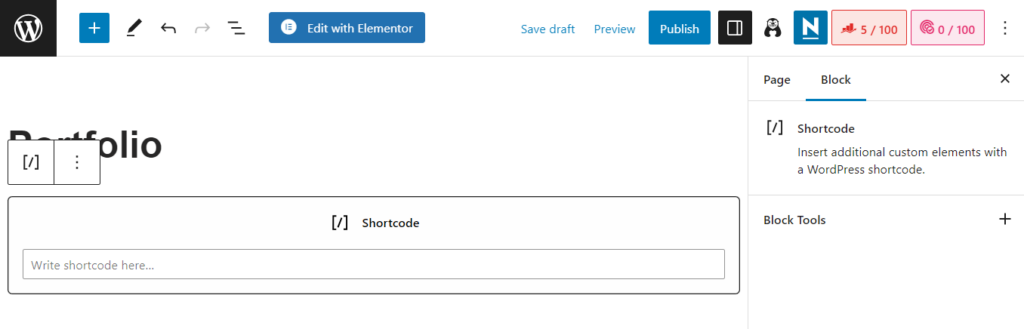
Option C: Use the shortcode
Copy the shortcode from the Embed tab (it looks like ) and paste it into any page, post, or text widget. This is the most flexible option if you’re using a classic editor or a page builder that supports shortcodes.
That’s it. Save your page and your Instagram feed is live.
How to Add an Instagram Feed to Your Sidebar or Footer
Instagram feeds work well in sidebars and footers because they add visual interest without competing with your main content. This is a popular setup for blogs and content-heavy sites.
Two approaches, depending on your theme:
Block-based themes (Full Site Editing):
- Go to Appearance > Editor.
- Select the template part you want to edit (sidebar, footer, etc.).
- Add the Spotlight Instagram Feed block.
- Choose your feed and save.
Classic themes (widget-based):
- Go to Appearance > Widgets.
- Find the Spotlight Instagram Feed widget.
- Drag it into your Sidebar or Footer widget area.
- Select which feed to display and save.
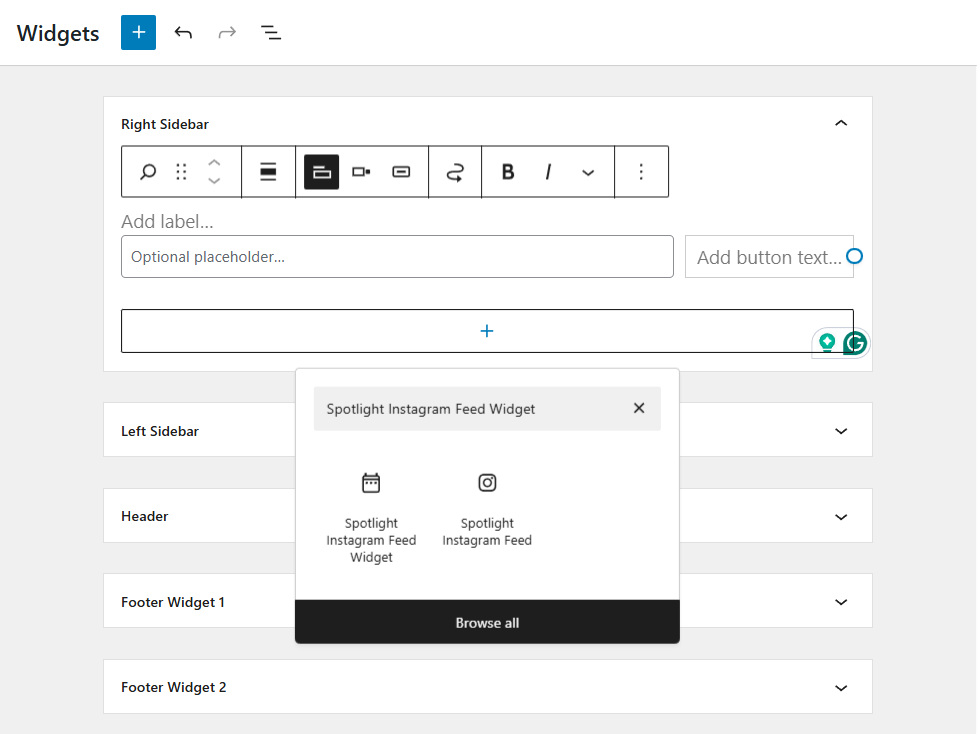
You can also paste the feed shortcode into a Text or Custom HTML widget if your theme doesn’t show the Spotlight widget directly.
For sidebar placement, a single-column grid with 6-9 posts tends to look best. Adjust these settings in the feed editor’s Design tab before embedding.
How to Add an Instagram Feed with Elementor
If you’re building pages with Elementor, you have two options depending on which Spotlight plan you’re on.
Free version: Use the shortcode method. Copy the shortcode from Spotlight’s feed editor, add a Shortcode widget in Elementor, and paste it in. The feed renders inside Elementor’s layout like any other widget.
Any premium plan (Essentials, PRO, or Agency): Spotlight includes a dedicated Elementor widget that lets you embed, edit, and create Instagram feeds directly inside Elementor’s editor with live preview. Search for “Spotlight” in Elementor’s widget panel to find it.
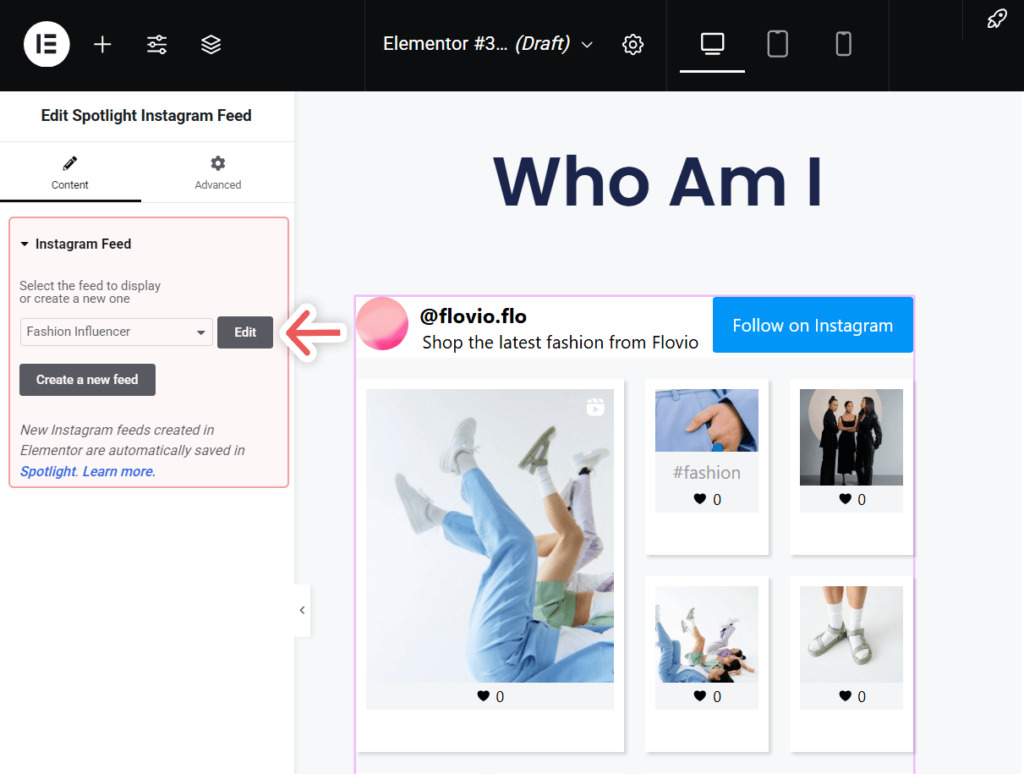
For a complete walkthrough with screenshots, see the Elementor Instagram feed tutorial. If you use Divi instead, there’s a separate Divi guide covering that integration.
How to Embed Instagram Posts Without a Plugin
You can embed individual Instagram posts without a plugin using WordPress’s built-in embed support or Instagram’s embed code. The limitation here is important: these methods only work for single posts. There’s no way to embed an auto-updating feed of your latest posts without a plugin or third-party service.
Method A: Paste the URL (WordPress oEmbed)
The fastest option. In the WordPress block editor:
- Find the Instagram post you want to embed.
- Copy its URL from your browser’s address bar.
- Paste the URL directly into the block editor on its own line.
- WordPress should automatically convert it into an embed preview.
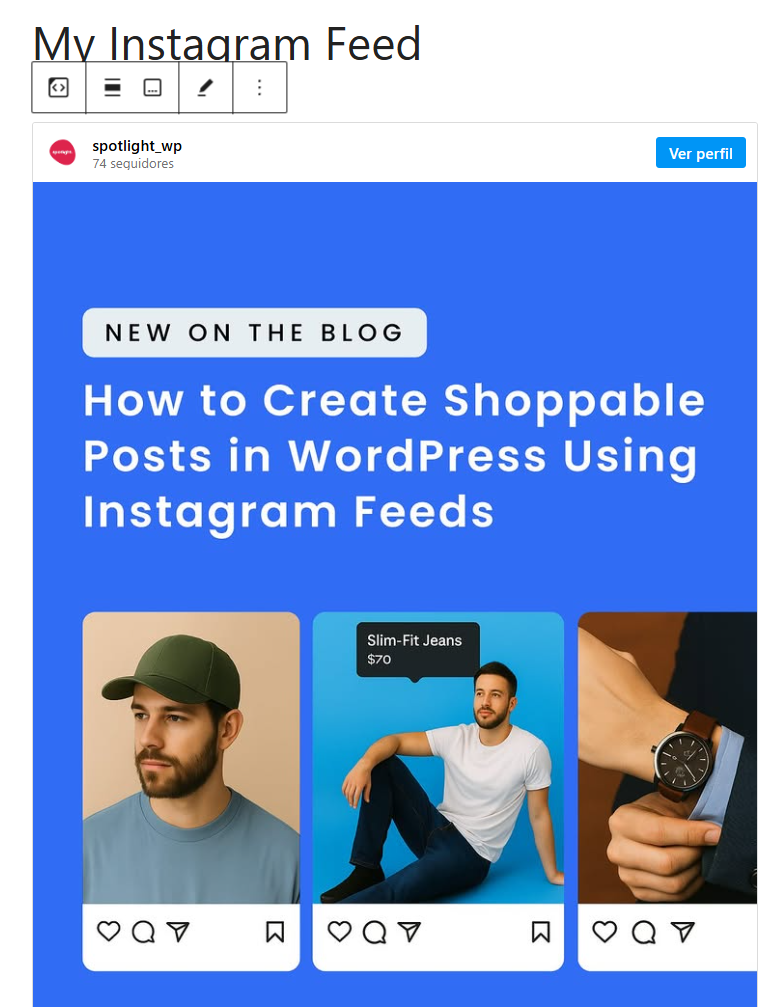
This works for public posts only. Private account posts won’t render.
Method B: Use Instagram’s Embed Code
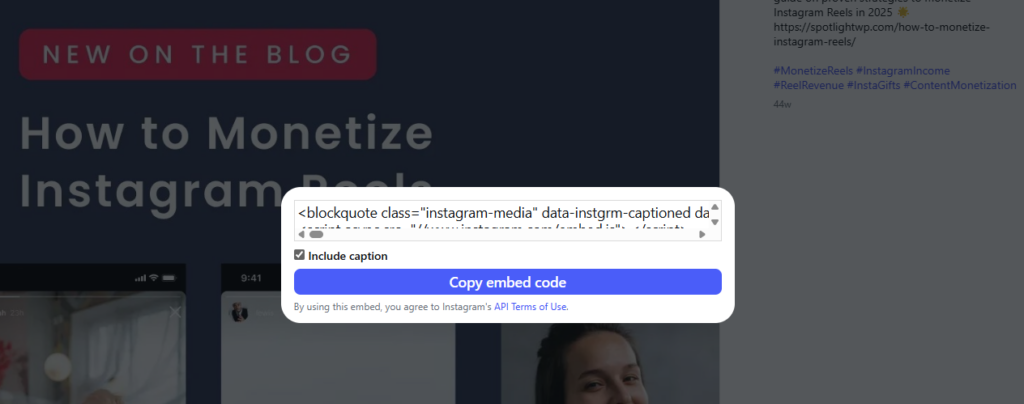
If the URL paste method doesn’t work (it can be inconsistent), grab the embed code directly:
- Open the Instagram post in your browser.
- Click the three-dot menu (…) in the top right of the post.
- Click Embed.
- Copy the embed code.
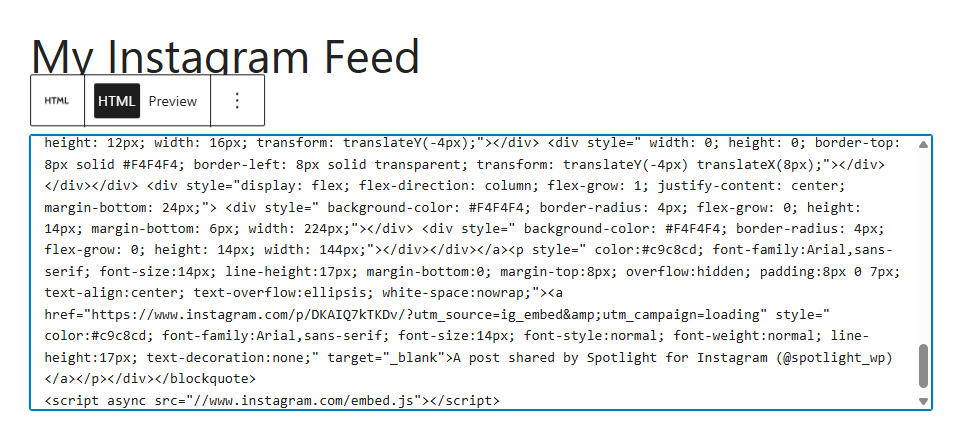
- In WordPress, add a Custom HTML block and paste the code.
Why this approach has limits
Manual embeds work for one-off posts, like embedding a specific testimonial or product announcement. But they break down as a strategy for a few reasons:
- You have to repeat the process for every post you want to show.
- There’s no auto-update. New Instagram posts don’t appear on your site unless you manually add them.
- You can’t customize the layout, so they display as individual embedded posts with Instagram’s default styling.
- Embeds sometimes render as a blank box with a link back to Instagram instead of showing the actual content.
For a detailed breakdown of these limitations (and when manual embeds still make sense), see our guide to embedding without a plugin.
Best Instagram Feed Plugins for WordPress Compared
We built Spotlight, so we’re biased. But we also know this space well enough to tell you when another plugin makes more sense. Here’s an honest look at how the main options compare:
| Plugin | Best For | Free Version | Starting Price | Shoppable Feeds | Hashtag Feeds |
|---|---|---|---|---|---|
| Spotlight ⭐ | Design control, shoppable feeds, live customizer | Yes (unlimited accounts & feeds) | $59/year | PRO ($99/yr) | PRO ($99/yr) |
| Smash Balloon | Multi-platform social feeds | Yes (limited) | $49/year | Plus ($99/yr) | Plus ($99/yr) |
| WPZOOM | Page speed | Yes | $49/year | No | No |
| Elfsight | Non-WordPress sites | Yes (200 views/mo) | $5/month | Yes | Yes |
Spotlight stands out in two areas. First, the free version is genuinely useful: unlimited accounts, unlimited feeds, and no post count restrictions. Most competitors cap at least one of those. Second, the live visual customizer shows every change in real time as you make it, so you’re designing your feed, not configuring a settings page and hoping for the best.
When another plugin might be the better fit:
- You need feeds from five social platforms. Smash Balloon’s All Access Bundle covers Instagram, Facebook, YouTube, Twitter, and TikTok. Spotlight focuses on Instagram.
- You’re not on WordPress. Elfsight works on any platform through a JavaScript embed.
For most WordPress sites that want a polished Instagram feed with room to grow into shoppable posts, hashtag campaigns, and Link in Bio pages, Spotlight is the strongest option. But don’t take our word for it, see what other users say.
For a much deeper comparison with pricing breakdowns, feature matrices, and honest tradeoffs, read our full plugin comparison.
Advanced Features Worth Exploring
Once your basic feed is running, these features can turn it from a visual element into a conversion tool:
- Shoppable feeds: Link Instagram posts directly to WooCommerce product pages. When a visitor clicks a post, they land on the product they’re looking at. Hashtag Automations take this further by auto-linking any post with a specific hashtag to a product page, so new Instagram content drives sales without manual work.
- Hashtag feeds: Display posts from a specific hashtag, not just your own account. This is the backbone of UGC campaigns. Encourage customers to tag your branded hashtag, and their posts show up on your site automatically.
- Tagged post feeds: Show posts where your account is tagged, which is another way to surface customer content. Combined with Spotlight’s visual moderation, you can approve or reject tagged posts before they appear on your site.
- Link in Bio pages: Build a Linktree-style landing page on your own WordPress site. You keep the traffic, the SEO value, and full design control instead of sending visitors to a third-party platform.
- Analytics: Track follower growth, post engagement, and click data inside WordPress. Available on the Agency plan with Google Analytics integration.
Troubleshooting Common Instagram Feed Issues
If your feed isn’t working the way you expect, start with these common fixes before reaching out to support.
Feed not showing at all
- Your access token expired. Instagram tokens need periodic renewal. In Spotlight, go to Instagram Feeds > Settings > Accounts and reconnect the affected account. This is the most common cause.
- Your account is set to private. Instagram’s API only serves content from public professional accounts. Check your Instagram privacy settings.
- A caching plugin is interfering. If you use WP Super Cache, W3 Total Cache, or similar, clear your cache after making changes to the feed. Spotlight has its own caching system, and sometimes plugin caches conflict. The Spotlight documentation has specific compatibility guides for major caching plugins.
- Your theme or another plugin is causing a JavaScript conflict. Try switching to a default WordPress theme (like Twenty Twenty-Four) temporarily. If the feed appears, the conflict is in your theme.
Feed not updating with new posts
- Caching is doing its job. Spotlight caches your feed to reduce API calls and improve performance. By default, it refreshes periodically. You can manually clear the cache from Instagram Feeds > Settings.
- You hit Instagram’s API rate limit. This happens if you’re making too many requests in a short period (common during testing). Wait an hour and the feed should update on its own.
Feed looks different than expected
- Your theme’s CSS is overriding the feed styles. Some themes apply aggressive global styles that affect plugin output. Spotlight’s customizer lets you set explicit colors, fonts, and spacing that override theme defaults.
- The feed is inheriting container width constraints. If the feed looks squeezed, check that the parent container (the page section or widget area) isn’t restricting width.
For anything beyond these basics, Spotlight’s help documentation covers 17 common problems and 11 specific error messages. You can also reach Spotlight support directly.
Frequently Asked Questions
How do I add an Instagram feed to my WordPress website?
Install an Instagram feed plugin from the WordPress plugin directory. After activation, connect your Instagram account, customize the layout in the plugin’s visual editor, and embed the feed on any page using the WordPress block editor, a shortcode, or a widget. The full process takes about five minutes. No coding required.
Can I add an Instagram feed to WordPress without a plugin?
You can embed individual Instagram posts by pasting the post URL into the block editor or using Instagram’s embed code. But you can’t display an auto-updating feed of your latest posts without a plugin or third-party service. Manual embeds are fine for one-off posts but impractical for a live feed. We break this down further in our guide to embedding without a plugin.
What is the best free Instagram feed plugin for WordPress?
Spotlight offers the most generous free version, with unlimited Instagram accounts and unlimited feeds. Most competing plugins restrict free users to one account, a limited number of posts, or a single layout. For a full breakdown, see our comparison of the top Instagram feed plugins.
How do I display my Instagram feed in a WordPress sidebar or footer?
If your theme uses widgets, go to Appearance > Widgets, add the Spotlight Instagram Feed widget to your sidebar or footer area, and select which feed to display. If your theme uses the Full Site Editor, add the Spotlight block to the sidebar or footer template part. You can also paste a feed shortcode into a Text or Custom HTML widget.
Why is my Instagram feed not showing on WordPress?
The most common causes: an expired access token (reconnect your account in the plugin settings), a private Instagram account (switch to public), or a caching conflict (clear your site’s cache). Check the troubleshooting section above for step-by-step fixes.
Do I need a Facebook or Meta Business account to display my Instagram feed?
You need a professional Instagram account (Creator or Business), which is free to set up. For the Basic connection method, you don’t need a Facebook Page at all. The Advanced connection, which unlocks hashtag and tagged post feeds, requires linking your Instagram to a Facebook Page. Spotlight’s account connection guide walks through both options.
How do I customize the layout of my WordPress Instagram feed?
In Spotlight, open your feed in the editor and click the Design tab. You can change the layout type (grid, masonry, highlight, slider), adjust post count, columns, colors, spacing, header display, and button styling. All changes preview in real time. See layout examples on the demo page.
Get Your Instagram Feed on WordPress
The fastest way to get started is with Spotlight’s free version. Unlimited accounts, unlimited feeds, no restrictions on post count. Install it, connect your Instagram, and have a feed live on your site in five minutes.
When you’re ready for shoppable feeds, hashtag campaigns, or visual moderation, the premium plans start at $59/year with a 30-day money-back guarantee.